Tuesday, November 16, 2010

How to comparing two values in Java

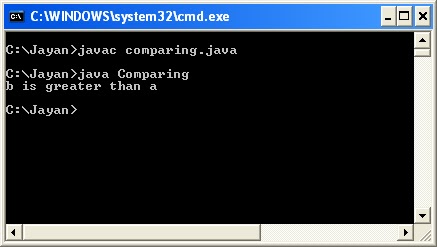
ok after few days I am going to explain how to compare two numeric values using Java. We are simple going to find which number is the greater one. To start the program I will create a class file call Comparing. I will take two numbers as a= 20 and b= 25. To get the answer we have to find whether a=b, a>b or a<b.  To solve this problem I am going to use ELSE condition on by one. So I will apply it as if ( a=b) else if (a>b) else println b is greater than a. :)  If one of this conditions get execute you will get the print message as I given bellow in the code. So please see my notepad and command prompt screens that I upload with this post. I hope you can save your file and execute your files by giving proper command....


Monday, November 1, 2010

Statements

Dear friends what is the meaning of statements ?  ok  lets see.

The code for  each method in the class appears between braces, and it consist of program statements.
A semicolon (;) terminates each statement. A statement in Java can spread over several lines if necessary,
since the end of each statement is determined by the semicolon, not by the end of line. Here is a java program statement

Bookonloan  =   true;          OR             Bookonloan =true;

You can generally include space and tabs and spread your statements over multiple lines to enhance readability
if it is particularly long statement but sensible constraints apply. You can't put a space in the middle of a name for instance. For example if you type book on loan the compiler will read this as three words..

Structure of a Java Program

Java programs always consist of  one or more classes. Where you typically put the program code for each class in a separate file, and you must give each file the same name as that of the class that is defined within.

A java file must have the extension (.java) thus your file containing the class student will be called student.java
and a file contain a class called employee will have the file name as employee.java

Friday, October 29, 2010

My 1st Java Program HELLO WORLD

Today I am going to share my knowledge about  Hello World program.
First of all I have to say you have to familiar with command prompt to make your 1st Java program easily :)
Any way search Google to get DOS commands. Here we are using simple commands like cd.. cd\ cls
I am not going to explain everything in Java program which you are going to type. By the way in future I will upload video files all about object oriented programming.

Here is the most easiest way to prevent from errors when you are creating a Java program.

First create folder for you in C: Drive by clicking my computer --- C: .   Name that folder in to your name
1. Open notepad on that folder.
2. Type your program as follow
3. Then save it with the extension .java (dot java) ex:  myfirstjob.java  (Use class name to save your program)
4.Open command prompt by giving CMD command in Windows Run.  (There are many methods to open command prompt)
5.Type Cd\  and press enter
6. Now give your path to program that you have typed.  (My folder name is jayanc)
7. Now you have to compile your java program by giving this command with your file name with extension
    ( I typed it as  javac myfirstjob.java and pressed enter)

8. If you typed your program without making mistakes then your program will compile like above.
9. OK now we have to type java myfirstjob  and press enter to get the result.

Here it is your  HELLO WORLD program is running perfectly.  :)

Please give your comments.

Thursday, October 21, 2010

Advantages of using JAVA

Why java programming Language is so famous and in top of the list of programming rankings ?
  • Java is simple and easy to understand.
  • You can run java programs unchanged on any machine and operating system combination that support Java.
  • Needs a single set of source code- Write once read many.
  • Java is Object Oriented -easier to understand , less time consuming to maintain and extend.
  • Learning cycle is shorter , Straight forward to use, Easy to test.
  • Distributes- Java programs can access data across a network.
  • Java is Robust- Less prone to errors.
  • Does not allow the programmer to manipulate the memory.
  • Multi-Threaded --- It allow multiple parts of a program to run simultaneously.
  • Maintaining different versions of an applications is very easy in Java.

Wednesday, October 20, 2010

JAVA Programming Language

Ok. Now we are the features Java Programming language have.
Java is a high-level programming language its having lots of features listed bellow

  • Object Oriented 
  • High Performance 
  • Simple 
  • Secure
  • Architecture Neutral 
  • Multithreaded
  • Dynamic
  • Portable     and etc.
We use to write Java code simply in Notepad. After we write that code we use to save it by using class name that we gave and with the .java extension.  After we saved it the we will compile it. After complied our java code will convert in to .class file. this class file is having a code which is unable to identify by you or your machine. Because of this Java is created Java Virtual Machine (JVM) to convert that code into machine code.After compile you can run your java file as you want.So we call this as Platform Independent. Ok  now you know Java is platform independent because of this JVM.

Tuesday, October 19, 2010

JAVA - Make it happen

Dear friends.... Hope you are enjoying my Blog about JAVA. Please don't forget to leave a comments on my clips. There are many Java VIDEO Clips are waiting to be upload. :) Please do keep in touch with me. Help me to get all of your friends to my blog. Share your knowledge. Thanks for everything. Keep going

J - Joy
A- Advance
V- Valuable  and
A-   Applicable

Lets start with Java Installation

Install your Java program software same like other softwares.

Open your program files in C: drive
Then open Java folder
Then open JDK folder which is having version name.
Then open bin folder

Ok.. Now copy you address which is having your path to bin folder
eg: C:\Program Files\Java\jdk1.6.0_01\bin

Ok

Now

Right click on my computer
Go to Properties
Click Advance
Click Environment Variables which is in left hand bottom
See there word for System variables
In that Variable column you can find a name call path
Double click on that
You will get new screen call EDIT SYSTEM VARIABLE
in that click on Variable Value box
move the Courser to right hand corner and click
ok now paste your address path to bin folder
and click ok
after finish everything you better restart your machine.
You have done now :)

How to check whether you have done it properly or not ??

its very simple
Go to command prompt and type java -version     presses enter.
Then you will get your Java version details
Then type javac and press enter. Please see whether you will get screen like my one. If so you are perfect to start java cording in command prompt.